Aug 26, 2008-Wondershare- the world’s leading PowerPoint to DVD solution provider, today announced the release of PPT2DVD 5.0, an innovation that contributes greatly to the quality improvement of the last version. Continue to put all efforts in perfecting the product and satisfying the customers. It is so far the best choice for you to burn PowerPoint to DVD for personal or commercial purpose.
Why should we burn PowerPoint to DVD?
1. PowerPoint has become ubiquitous in many areas but can only keep the wealth of information locked inside the room. PPT2DVD helps you crack this big nut and enables you to burn your PowerPoint to DVD for wildly sharing and delivering.
2. DVD machine takes the place of a computer when showing your PowerPoint presentations. Low cost, but high efficiency.
3. By burning PowerPoint to DVD your presentations will live for more than 50 years! DVD is Ideal for long time preservation, while a hard disk will die in 10 years.
4. Prevent your PowerPoint presentations from unauthorized editing.
Key Features of Wondershare PPT2DVD 5.0
1. Remain all the animations, transitions, sounds, video clips, and internal links in the original presentation;
2. An easy step-by-step conversion guide and flexible Output Options;
3. Support generating high resolution video for HD-DVD and standard DVD;
4. Create professional look DVD menus for flexible and fast navigation;
5. Make the videos in the original PowerPoint presentation full-screen play;
6. Supports converting 12 PowerPoint files at a time;
7. Compatible with Windows Vista, XP, 2000, PowerPoint 97-2007.
Learn more about PPT2DVD
What’s New in Wondershare PPT2DVD 5.0
1. The convert speed, output quality and compatibility are improved significantly due to the new processing engine.
2. The reputed easy-to-use user interface is more user-friendly and easy-understanding.
3. The innovative sound recorder is powered to retain all kinds of sounds in your presentations.
4. Adding logo(s) to all your presentations is a thing of few seconds. It is very easy to add logo(s) for your business presentations.
System Requirements
1. Office Requirement: Microsoft PowerPoint Version 97-2007
2. Operating System: Windows (32) 2000/XP (Service Pack 2)/2003/Vista
3. RAM Requirement: 256MB RAM or above
4. Available Disk Space: 2 GB Free Space or larger
Other Requirements: Windows-compatible display with at least 800 x 600 resolutions. Windows-compatible sound card (recommended) DirectX 9 or above
About Wondershare PPT2DVD
Wondershare PPT2DVD is the flagship product among Wondershare presentation tools which are easy-to-use, with comprehensive feature set and superior output quality. PPT2DVD is ideal for trade show, digital signage, business fair, company presentation, celebration and etc.
Wednesday, August 27, 2008

Friday, August 22, 2008
Wondershare Back-to-School Promotion
August 25, 2008-Wondershare Software Co., Ltd, start the back-to-school promotion, this promotion will last for about 40 days, during the promotion, Wondershare provides 30% discount for PPT2DVD and 20% discount for PPT to Video. Customers who buy the product can also get a pack of 8 free PowerPoint templates during the promotion.
Learn more about Wondershare back-to-school promotion
What is Wondershare PPT2DVD?
Wondershare PPT2DVD is the first program offering a cost-effective method to burn PowerPoint presentations to DVD. All animations, sounds, video clips and hyperlinks between slides will be retained after conversion. No complex computer skills are required. Just import the PowerPoint files, create professional look DVD menus from build-in templates, and start the burning process. It’s all that easy! Learn more about Wondershare PPT2DVD
The benefits of using Wondershare PPT2DVD
1.Burn your courseware and project report to DVD for easy sharing and delivery
2.You won’t need to worry about your courseware being modified after burning it to DVD
3.DVD based courseware will be played smoothly, no matter you have a PC, Mac or DVD machine
What is Wondershare PPT to Video
Wondershare PPT to Video is an all-in-one PowerPoint to video converter. It empowers you to convert PowerPoint presentations to almost all popular video formats such as AVI, MP4, WMV, ASF, MOV, MPEG and so on, with excellent quality. Learn more about PPT to Video
The benefits of using Wondershare PPT to Video
1.Share your PowerPoint courseware worldwide via blog, YouTube and iTunes
2.Review your PowerPoint courseware on iPod, iPhone, Pocket PC
3.Play PowerPoint courseware on computers without PowerPoint installed
4.Reduce PowerPoint file size by up to 90% for easily emailing your courseware to others
Pricing and Availability
The original price of Wondershare PPT2DVD is $99.95 and Wondershare PPT to Video is $49.95. Academic users can get PPT2DVD for $69.95 and PPT to Video for $39.95 during the promotion.
About Wondershare Software Co., Ltd
Established in the year 2003, Wondershare is dedicated in developing innovative multimedia applications for individuals and businesses. The flagship product like PPT2DVD is accepted by more than 300,000 users all over the world. The name of Wondershare shows a will of the founder of the company and the folks here to share their creativity with the world, and make the life and work of others easier.
Learn more about Wondershare back-to-school promotion
What is Wondershare PPT2DVD?
Wondershare PPT2DVD is the first program offering a cost-effective method to burn PowerPoint presentations to DVD. All animations, sounds, video clips and hyperlinks between slides will be retained after conversion. No complex computer skills are required. Just import the PowerPoint files, create professional look DVD menus from build-in templates, and start the burning process. It’s all that easy! Learn more about Wondershare PPT2DVD
The benefits of using Wondershare PPT2DVD
1.Burn your courseware and project report to DVD for easy sharing and delivery
2.You won’t need to worry about your courseware being modified after burning it to DVD
3.DVD based courseware will be played smoothly, no matter you have a PC, Mac or DVD machine
What is Wondershare PPT to Video
Wondershare PPT to Video is an all-in-one PowerPoint to video converter. It empowers you to convert PowerPoint presentations to almost all popular video formats such as AVI, MP4, WMV, ASF, MOV, MPEG and so on, with excellent quality. Learn more about PPT to Video
The benefits of using Wondershare PPT to Video
1.Share your PowerPoint courseware worldwide via blog, YouTube and iTunes
2.Review your PowerPoint courseware on iPod, iPhone, Pocket PC
3.Play PowerPoint courseware on computers without PowerPoint installed
4.Reduce PowerPoint file size by up to 90% for easily emailing your courseware to others
Pricing and Availability
The original price of Wondershare PPT2DVD is $99.95 and Wondershare PPT to Video is $49.95. Academic users can get PPT2DVD for $69.95 and PPT to Video for $39.95 during the promotion.
About Wondershare Software Co., Ltd
Established in the year 2003, Wondershare is dedicated in developing innovative multimedia applications for individuals and businesses. The flagship product like PPT2DVD is accepted by more than 300,000 users all over the world. The name of Wondershare shows a will of the founder of the company and the folks here to share their creativity with the world, and make the life and work of others easier.
Saturday, August 2, 2008
PowerPoint Video Issues--How to Insert Video into PowerPoint and Deliver It Well
Using video clips to show concrete examples promotes active cognitive processing, which is the natural way people learn. So I want to descript a simple question asked in yahoo answers frequently, that is, how to insert video into PowerPoint and how to deliver the PowerPoint presentation contains video clips. This is a common problem that you can play your PowerPoint well in your own computer but the video cannot be played when you sent your presentation to others.
Part 1: How to insert video into PowerPoint?
When inserting video clips into PowerPoint 2007, you have 2 choices. You can insert video clips from you own file or from clip organizer into PowerPoint. PowerPoint automatically has motion clips in the Clip Gallery. Motion clips are like clip art except the images that include animation. This animation can be seen when you run the slide show.
Q: How to insert video into PowerPoint presentation from my own file?
A: At first you must download the video you appreciated from the website, and remember, put the video clip and your PowerPoint presentation in the same folder. The most suitable formats to insert into PowerPoint are WMV. AVI, MPG. ASF is also fine but it depends on your codec. OK, now, let’s start.
1.View the appropriate slide in normal view which you want to insert the video clip in.
2.From the insert tab, click the pull-down list, click movie from file, then insert movie dialog appeared, choose the right video file.

3.Then the alert box appears asking how you want the movie to start. To play the movie automatically, click automatically. To start your movie by clicking the mouse, click When Clicked.

Q: How to insert video clip into PowerPoint presentation from clip organizer?
A: In the clip organizer, there are many simple and vivid video clips we can enjoy.
1.From the insert tab, click the movie icon and choose movie from clip organizer, The Clip Art task pane appears with all choices displayed.
2.Search for clips by keyword in the search text box, click the right video then the video appeared in your slide.
Part 2: Delivering PowerPoint with video embed well
Q: Why the video in PowerPoint can’t be played in other computer but mine? This is the most important thing you should pay attention to
A: Someone may be confused by this question, the video and audio can be played smoothly on their own computers but when sent to others, the video and audio cannot be work.
Previously, I have mentioned that you should put the video clips and your PowerPoint presentation in the same folder, when send your presentation to others, zip the folder to a package, and then sent the packed file rather than the sole presentation. In fact, video clips are not embedded in PowerPoint, but linked to PowerPoint. If PowerPoint cannot find the video clips in slides, of course, it cannot be played.
Q: How can I send PowerPoint presentation to my friends who don’t have PowerPoint installed computer? Another tip for you to deliver your presentation widely
A: OK, you did everything as I said in order to share your presentation with your friends, but, unfortunately, some of your friends don’t have PowerPoint installed. Can they view your presentation?
Convert your PowerPoint to video. Yes, it is possible. And this is the most popular method that helps you deliver your presentation widely. After converting your PowerPoint presentation to video you can podcast you presentation on YouTube, your website, blog, and even view it on TV.
There are many converters that can convert the PowerPoint to video format. If you input “convert PowerPoint to video” in Google search toolbar, you will find hundreds of thousands of result.
The tool, Wondershare PPT to Video, can convert PowerPoint presentations to almost all popular video formats such as MPEG, AVI, MP4, WMV, MOV, 3GP with high quality. Besides, you can burn the converted video to DVD with a third-party burning program such as Nero. Of course, this is only one instance out of many, you can have more attempts.
Part 1: How to insert video into PowerPoint?
When inserting video clips into PowerPoint 2007, you have 2 choices. You can insert video clips from you own file or from clip organizer into PowerPoint. PowerPoint automatically has motion clips in the Clip Gallery. Motion clips are like clip art except the images that include animation. This animation can be seen when you run the slide show.
Q: How to insert video into PowerPoint presentation from my own file?
A: At first you must download the video you appreciated from the website, and remember, put the video clip and your PowerPoint presentation in the same folder. The most suitable formats to insert into PowerPoint are WMV. AVI, MPG. ASF is also fine but it depends on your codec. OK, now, let’s start.
1.View the appropriate slide in normal view which you want to insert the video clip in.
2.From the insert tab, click the pull-down list, click movie from file, then insert movie dialog appeared, choose the right video file.
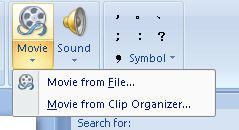
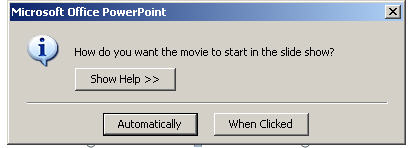
3.Then the alert box appears asking how you want the movie to start. To play the movie automatically, click automatically. To start your movie by clicking the mouse, click When Clicked.
Q: How to insert video clip into PowerPoint presentation from clip organizer?
A: In the clip organizer, there are many simple and vivid video clips we can enjoy.
1.From the insert tab, click the movie icon and choose movie from clip organizer, The Clip Art task pane appears with all choices displayed.
2.Search for clips by keyword in the search text box, click the right video then the video appeared in your slide.
Part 2: Delivering PowerPoint with video embed well
Q: Why the video in PowerPoint can’t be played in other computer but mine? This is the most important thing you should pay attention to
A: Someone may be confused by this question, the video and audio can be played smoothly on their own computers but when sent to others, the video and audio cannot be work.
Previously, I have mentioned that you should put the video clips and your PowerPoint presentation in the same folder, when send your presentation to others, zip the folder to a package, and then sent the packed file rather than the sole presentation. In fact, video clips are not embedded in PowerPoint, but linked to PowerPoint. If PowerPoint cannot find the video clips in slides, of course, it cannot be played.
Q: How can I send PowerPoint presentation to my friends who don’t have PowerPoint installed computer? Another tip for you to deliver your presentation widely
A: OK, you did everything as I said in order to share your presentation with your friends, but, unfortunately, some of your friends don’t have PowerPoint installed. Can they view your presentation?
Convert your PowerPoint to video. Yes, it is possible. And this is the most popular method that helps you deliver your presentation widely. After converting your PowerPoint presentation to video you can podcast you presentation on YouTube, your website, blog, and even view it on TV.
There are many converters that can convert the PowerPoint to video format. If you input “convert PowerPoint to video” in Google search toolbar, you will find hundreds of thousands of result.
The tool, Wondershare PPT to Video, can convert PowerPoint presentations to almost all popular video formats such as MPEG, AVI, MP4, WMV, MOV, 3GP with high quality. Besides, you can burn the converted video to DVD with a third-party burning program such as Nero. Of course, this is only one instance out of many, you can have more attempts.
Monday, July 21, 2008
PowerPoint tips
Are you puzzled when using PowerPoint sometimes? In this article, I will list some small PowerPoint tips. Maybe they are all common, but practical ones. Hope these tips will make you convenient in your work and life.
1. How to Resize Pictures
You can size pictures in PowerPoint by clicking the picture with the mouse and dragging it to a new size. If you don’t want to "stretch" the picture (keeping the horizontal aspect ratio the same) but enlarge it, hold the Crtl key when changing the size. You can also click the corner of the picture and enlarge it and the aspect ratio will remain the same.
2. How to Use Scanned Photos in PowerPoint
In Microsoft PowerPoint, you may want to add your own scanned photos into a slide to spice up your presentation. But very large pictures can slow down you slide show when they start to load. Even if a picture takes only a few seconds to load, it can throw off your entire presentation, as well as your timing. Recommend using smaller sized photos to help your slide show run exactly how it should.
3. How to Use Graphics with Text Efficiently
While working in Microsoft PowerPoint, you may decide to use text over graphics. This can either make or break your presentation, depending on how well you select your font and color. When working with text and a full color, it can be very difficult to pick the right color and font style. However, when working with a picture that only contains a few colors, text on top of it can spice up the slide’s appearance.
4. How to Record a Narration in PowerPoint
You can record a narration into a PowerPoint slide easily. Do this:
a. Go to the Slide you wish to add a narration to.
b. From the Insert menu select Movies and Sounds.
c. Click Record Sounds.
d. When ready, click the Record button (the red circle).
e. When finished recording, click the black Stop button.
f. Click OK.
5. How to Add a Background Sound to a PowerPoint Slide
To add a background sound to a PowerPoint slide, follow this:
a. Open the Insert menu.
b. Select Movies and Sounds.
c. Click Play CD Audio Track.
When a CD is inserted, a dialog box will appear. From here, simply choose the track you want and select the options you want for it. During your presentation, simply double-click on its icon to start the music.
6. When Using AVI files with Presentations
Using an AVI file with a presentation may spice it up, but it can also ruin it. Make sure to keep your AVI file normal size. A movie playing that is viewed too big will not have anywhere near the quality that a smaller viewed movie will.
7. How to Convert Your PowerPoint to DVD
You can use Windows Movie Maker, but you may not be able to keep the animations and sounds in your presentation. Another choice is to use a professional tool to help you do this easily. Here I recommend the Wondershare PPT2DVD. With a high conversion quality, you can do it easily.
More information you can go to http://www.ppt-to-dvd.com
Small PowerPoint tips but useful. Welcome to share more tips here!
1. How to Resize Pictures
You can size pictures in PowerPoint by clicking the picture with the mouse and dragging it to a new size. If you don’t want to "stretch" the picture (keeping the horizontal aspect ratio the same) but enlarge it, hold the Crtl key when changing the size. You can also click the corner of the picture and enlarge it and the aspect ratio will remain the same.
2. How to Use Scanned Photos in PowerPoint
In Microsoft PowerPoint, you may want to add your own scanned photos into a slide to spice up your presentation. But very large pictures can slow down you slide show when they start to load. Even if a picture takes only a few seconds to load, it can throw off your entire presentation, as well as your timing. Recommend using smaller sized photos to help your slide show run exactly how it should.
3. How to Use Graphics with Text Efficiently
While working in Microsoft PowerPoint, you may decide to use text over graphics. This can either make or break your presentation, depending on how well you select your font and color. When working with text and a full color, it can be very difficult to pick the right color and font style. However, when working with a picture that only contains a few colors, text on top of it can spice up the slide’s appearance.
4. How to Record a Narration in PowerPoint
You can record a narration into a PowerPoint slide easily. Do this:
a. Go to the Slide you wish to add a narration to.
b. From the Insert menu select Movies and Sounds.
c. Click Record Sounds.
d. When ready, click the Record button (the red circle).
e. When finished recording, click the black Stop button.
f. Click OK.
5. How to Add a Background Sound to a PowerPoint Slide
To add a background sound to a PowerPoint slide, follow this:
a. Open the Insert menu.
b. Select Movies and Sounds.
c. Click Play CD Audio Track.
When a CD is inserted, a dialog box will appear. From here, simply choose the track you want and select the options you want for it. During your presentation, simply double-click on its icon to start the music.
6. When Using AVI files with Presentations
Using an AVI file with a presentation may spice it up, but it can also ruin it. Make sure to keep your AVI file normal size. A movie playing that is viewed too big will not have anywhere near the quality that a smaller viewed movie will.
7. How to Convert Your PowerPoint to DVD
You can use Windows Movie Maker, but you may not be able to keep the animations and sounds in your presentation. Another choice is to use a professional tool to help you do this easily. Here I recommend the Wondershare PPT2DVD. With a high conversion quality, you can do it easily.
More information you can go to http://www.ppt-to-dvd.com
Small PowerPoint tips but useful. Welcome to share more tips here!
Tuesday, July 8, 2008
PowerPoint Security
Are you a busy PowerPoint user who wants to improve PowerPoint security? Recently, I paid much attention to the security of the PowerPoint presentation: We spend much time creating a PowerPoint presentation. When sharing our presentation with others, we often worry about the security of it, and worry about being modified by others. So we usually want to take some methods to improve the PowerPoint security.
It is awful to see your PowerPoint presentation appears somewhere with some information changed, especially, your name changed! The fact is that most time we have to hand out our PowerPoint presentation for some reasons. We can do something to protect our PowerPoint presentation. Here are some methods to improve your PowerPoint security and their disadvantages:
The first way to improve the security is to use the functions PowerPoint itself provides.
Password protecting in PowerPoint 2003- Open the presentation that you want to set a password for. On the Tools menu, click Options, and then click the Security tab. In this dialog box you can set password for viewing PowerPoint and modifying PowerPoint.
>But this function is not really safe when you are using PowerPoint 2003 because when you choose Compare and Combine the presentation, the password protect can be avoid easily.
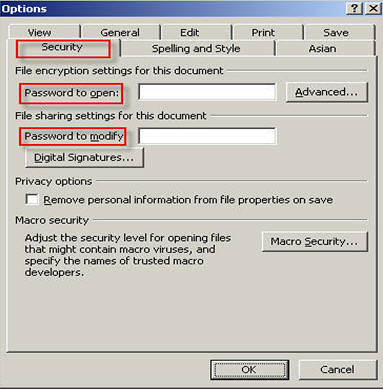
- Encrypt Document, File->Prepare->Encrypt Document. You can set a password to protect your PowerPoint presentation. It is similar with in 2003.
- File->Prepare->Restrict Permission, give the permission to the person who you trust by their E-mail account.
- Add a Digital Signature. You can add a Digital Signature in your presentation to protect it.
- Mark as Final. Choose the option of Mark as Final, after that, nobody can modify your presentation including yourself, but as it to me, compared with the methods above, I prefer this one.

The second way to improve the PowerPoint security is to use some programs to convert your PowerPoint presentation to video format. Besides the benefit of improving the security of your presentation, you can also make it convenient for the person who has not PowerPoint installed. It is convenient for delivery.
- Using PPT2DVD to convert your PowerPoint to DVD. You can image how safe your presentation is. The person who receives your presentation can only view your presentation on DVD!
- Using PPT to Video to convert your presentation to video format such as MPEG, AVI, MP4, WMV, MOV and 3GP. Besides the security problem, have you ever thought that PowerPoint could be uploaded to YouTube? Yes, PPT to video can save your presentation to YouTube, IPod, iPhone, Zune and so on.
- Saving the presentation in JEPG format then using Windows Movie Maker. It is easy but we cannot keep the animations, transitions, sounds, video clips and other things in the original PowerPoint retained. This method is similar with the one by converting your PowerPoint presentation to PDF format.

Choose the method you like and improve the security of your PowerPoint presentation, and get the benefit of it.
Wednesday, May 21, 2008
Wondershare PPT2DVD 4.7.0 Released
New! Wondershare PPT2DVD 4.7.0 Released
May 21st, 2008-Wondershare- the world’s leading PowerPoint to DVD conversion program, today announced the release of PPT2DVD 4.7, an innovation that contributes greatly to the quality improvement of the last version. Continue to put all effort in perfecting the product and satisfying the customers. It is so far the best choice for you to burn PowerPoint to DVD for personal or commercial purpose.
Key Features
1. All the animations, transitions, sounds, video clips, internal links contained in the original presentation would perform exactly the same after the conversion;
2. An easy step-by-step conversion guide;
3. Flexible Output Options;
4. Support generating high resolution video for HD-TV playback;
5. Create professional look DVD menus for flexible and fast navigation;
6. Makes the videos in the original PowerPoint presentation full-screen play;
7. Supports 12 PowerPoint files convert at a time;
8. Compatible with Windows Vista, PowerPoint 2007.
What’s New
1. Burns PowerPoint presentations to DVD with improved video quality (Real Player 10 is recommended);
With an improvement to the output video quality, the images are clearer and the sounds have a higher fidelity.
2. The conversion process is more stable and fast;
3. Improved DVD menu more comfortable and easy to use
More menu design options are available. You are able to create professional look DVD menus without learning curve.
Main Benefits of burning PowerPoint to DVD
1. PowerPoint itself is an innovative presentation authoring tool. But due to its obstacle of sharing and spreading presentations, one may get quite annoyed sometimes.PPT2DVD helps you crack the big nut and enables you to distribute your presentations in the most popular formats.
2. PPT2DVD enables you to create professional look DVD menus easily. After burning your PowerPoint to DVD, you can have a full control of playing the presentation.
3. DVD machine takes the place of a computer when showing your PowerPoint presentations.
Low cost, but high efficiency.
4. Prevent your PowerPoint presentations from unauthorized editing.
5. A DVD disc is convenient for sharing and delivering.
System Requirement
1. Office Requirement: Microsoft PowerPoint Version 2000/2002/2003/2007
2. Operating System: Windows (32) 2000/XP(Service Pack 2)/2003/Vista
3. RAM Requirement: 256MB RAM or above
4. Available Disk Space: 2 GB Free Space or above
5. Other Requirements: Windows-compatible display with at least 800 x 600 resolution. Windows-compatible sound card (recommended) DirectX 9 or above
About Wondershare PPT2DVD
Wondershare PPT2DVD is the flagship product among Wondershare presentation tools which are easy-to-use, with comprehensive feature set and superior output quality. PPT2DVD is ideal for trade show, digital signage, business fair, company presentation, celebration and etc.
More information about Wondershare PPT2DVD, please visit:
Monday, May 5, 2008
PowerPoint templates for mother's day
The Mother's Day holiday, in the United States, celebrates motherhood generally and the positive contributions of mothers to society. It falls on the second Sunday of each May. It is the result of a campaign by Anna Marie Jarvis (1864-1948), who, following the death of her mother on May 9, 1905, devoted her life to establishing Mother's Day as a national, and later an international, holiday.
"Mother carries the child in her womb for nine months and in her heart for the rest of her life".
And in 2008, Mother's Day occurs on May 11. Hope all mothers have a wonderful day. There are some mother’s day PowerPoint templates for you to create presentations, give your thanks, love and gifts to your mom.
PowerPoint templates for mother’s day 1:
This is a sample Mother's Day story template, follow the example and tell the story why mother is special. This template is come from Wendy Russell The screenshot is like below:
Download this template
PowerPoint templates for mother’s day 2:
Give my best wishes to my mom.
From: http://www.indezine.com/powerpoint/templates/316.html
PowerPoint templates for mother’s day 3:
More PowerPoint templates for mother’s day.
Subscribe to:
Posts (Atom)

